


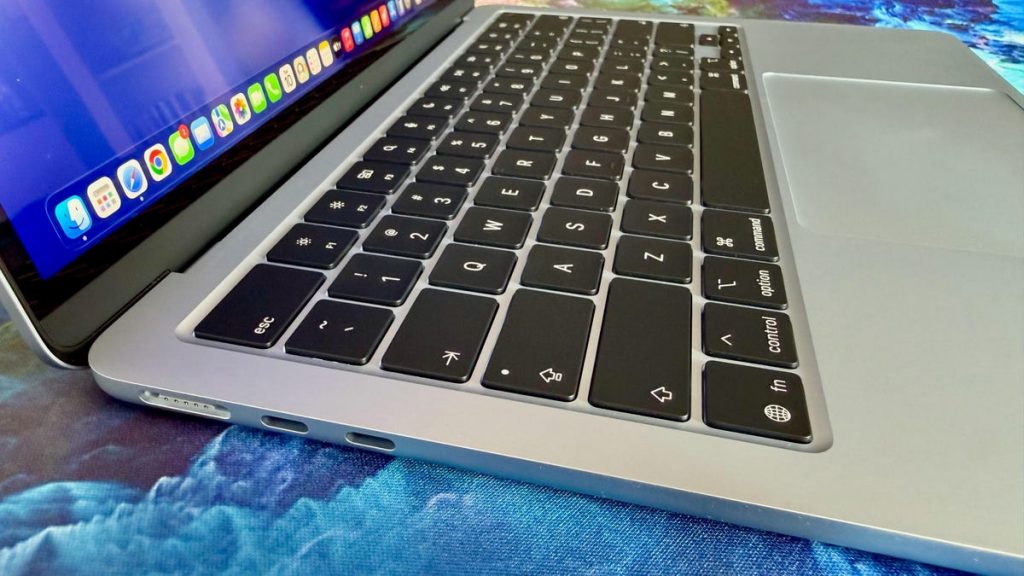
Happy World Backup Day! There’s only one way to celebrate the occasion — by preventing tragic data loss and backing up your data.
If you have a Mac, you’ve got no excuse for not performing regular backups. Apple makes it relatively painless by including its Time Machine app in MacOS, which you can schedule to run a full backup of your Mac. You don’t have to do a thing after the initial setup process, which takes just a few minutes.
There is no shortage of cloud storage services that can automatically sync your files, such as Dropbox and Google Drive, but cloud drives can’t back up everything on your computer. For example, they don’t remember your local coffee shop’s Wi-Fi password or every setting in MacOS that you’ve tweaked to make your Mac feel like yours and yours alone. A backup also makes it easy to move your apps, data and settings to a new Mac if you upgrade to a new machine, like the new MacBook Neo or M5 MacBook Air.
Below, I’ll walk you through setting up a Time Machine backup and how to check what files iCloud is backing up.
Use Time Machine to back up your Mac
As long as it knows where to store the files, Time Machine can be set to backup up your computer periodically, though you can also manually trigger a backup. In fact, when you connect an external drive to your Mac, you may see a prompt asking if you want to use it with Time Machine.
Once Time Machine is set up, it will create and store one backup every hour for the past 24 hours, daily backups for the past month and one backup a week for all previous months until it runs out of space. Once the backup drive is full, it will make room by deleting the oldest backups.
As far as how big a drive to get, the rule of thumb is 1.5 to two times the size of your Mac’s hard drive. For example, if your Mac has 512GB of storage, you’ll want a 1TB drive. You can find an external hard drive or SSD for relatively little, and we even have a handy guide to the best drives.
The drive can be directly connected to your Mac or connected via your network.
Apple’s supported options are:
- External USB or Thunderbolt drive connected to your Mac
- Network-attached storage device that supports Time Machine over SMB
- Mac shared as a Time Machine backup destination
- External drive connected to an AirPort Extreme Base Station (802.11ac) or AirPort Time Capsule
- AirPort Time Capsule (technically discontinued, but still available as a refurb)
To begin, plug the drive into your Mac and wait for the prompt to use it with Time Machine. If your Mac forgets its manners and doesn’t ask, select the drive to use by going to System Settings > General, choose Time Machine on the right and click the Add Backup Disk button.
If it’s not already formatted to work as a backup drive, Time Machine will ask if you want to format the drive. Doing so will erase anything on the drive, so make sure there’s nothing on the drive you don’t want to lose.
When selecting your drive for Time Machine, you can also choose to encrypt backups. Encryption means restoring from the Time Machine backup will require a password.
You can also click the Options button in the Time Machine panel to indicate what types of items you’d like Time Machine to exclude. Excluding items can speed up the process, but you can still use your Mac while it’s running in the background. Older Macs might feel a bit sluggish during the backup process, though. The Time Machine icon in the menu bar lets you keep an eye on the status of the backup, stop it and manually start a backup.
To restore your system or even a single file to a previous point, click the menu bar and choose Browse Time Machine Backups. You’ll see your previous Time Machine backups arranged like cards in a Rolodex. Scroll through, find the one you want and click the Restore button.
iCloud backs up some stuff, but not everything
Where Time Machine is a complete system backup, iCloud only stores selected files and data. You can see a list of everything that’s currently being synced and stored in your iCloud account under System Settings > Internet Accounts > iCloud. Naturally, this can be limited by the amount of data in your iCloud or Apple One subscription.
The free default is a mere 5GB of iCloud space, and you can add more with an iCloud Plus subscription. Here’s what Apple charges per month for iCloud Plus:
- 50GB: $1
- 200GB: $3
- 2TB: $10
- 6TB: $30
- 12TB: $60
Buying a new Mac? Here’s a list of the best MacBooks and the best MacBook deals happening now. Plus, you should get a Mac VPN.