


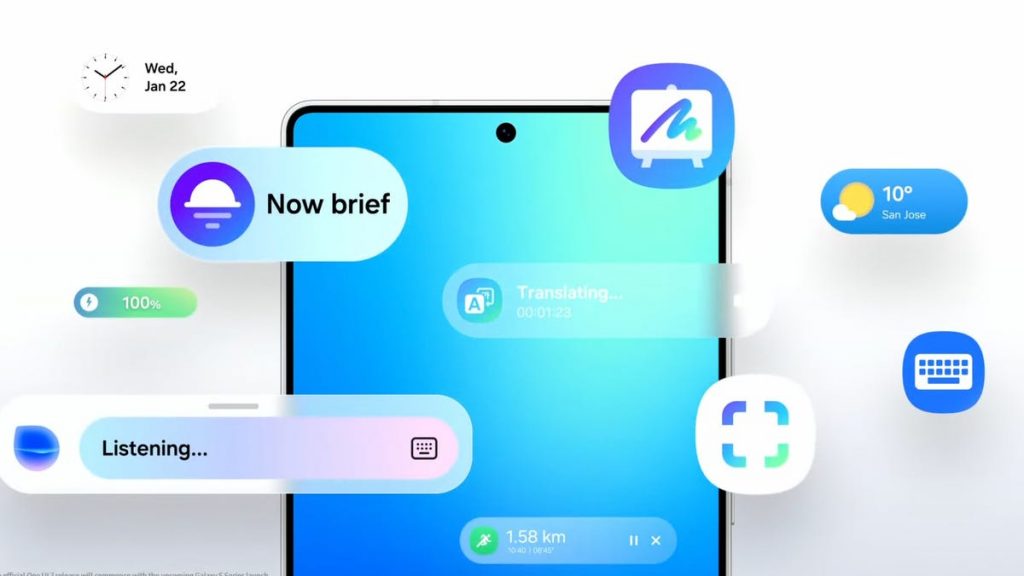
Samsung is known for throwing virtually every feature imaginable in its smartphones, whether you have the intention of using them or not. There are countless additional customizations and apps in Galaxy phones that can be a bit overwhelming to figure out what you actually need.
This also extends to AI features. Not only can you use Gemini directly from the phone, but Samsung has its own suite of AI features that you may or may not find useful. Luckily, you can remove nearly anything you don’t want on your Samsung phone.
Whether you just want to turn off some of the AI features on your Galaxy smartphone or you want to disable them completely, we’ll show you how to do that below.
Read more: Galaxy Unpacked 2026 Live Updates: Samsung S26 Reveal Almost Here
How to turn off Galaxy AI services
Some of the features that smartphones can do using AI are undeniably cool. If you like some of them but don’t want AI everywhere, Samsung will allow you to pick and choose what to take advantage of.
To turn off AI for individual services:
- Go to Settings.
- Tap Galaxy AI.
- Select the service to disable.
- Tap the toggle to Off.
You’ll see a list of the services that form Galaxy AI. You can choose the apps for which you want to turn AI on or off from here.
If you’re more privacy-minded but still want to take advantage of Galaxy AI features, there’s a toggle at the bottom of this screen that will limit AI from sending anything to the cloud and keep data processing on your device only. Going for this option will disable some AI features altogether that require the internet to process, and the results may be less useful.
Goodbye, Bixby
Bixby, the Samsung digital assistant that you may not even realize is on your phone, is something that you’ll want to disable if you’re trying to tame the AI on your Galaxy device.
Luckily, Samsung has a way for you to replace Bixby with another voice assistant of your choosing. For all intents and purposes, Google Assistant will be your best bet, even if it will eventually be replaced by Google’s advanced AI assistant somewhere down the road.
It’s likely already installed on your phone, but you may need to redownload the Google app if you uninstalled it or never had it.
- Go to Settings.
- Tap Apps.
- Tap Default apps.
- Tap Digital assistant app.
- Tap Google.
That’s it. Now, when you trigger your voice assistant, you’ll be greeted by Google Assistant instead of the AI-powered Bixby.