


In the next few months, my suitcase is going to get a lot of mileage. From sunny Disney World to colorful Austin, Texas, to the iconic canals in Amsterdam, I’m going to be booked and busy with a slate of travel adventures. I find it hard to sit still.
As much as I love exploring new places, I also love discovering tech shortcuts that make those travels easier. Allow me to introduce you to one service I rely on heavily: Google Lens, Google’s AI-powered visual search tool.
Google Lens uses your phone’s camera to identify objects in real time and instantly retrieve more information, translations or shopping options. Lately, I’ve been using it constantly whether I’m translating menus at cozy Korean restaurants, identifying the shells I collect on the beach or uncovering the history behind a decades-old work of art. It’s become my secret weapon for smarter, smoother adventures.
And I’m not alone in turning to Google Lens on vacation. Google has highlighted several ways travelers can take advantage of Lens’ Visual Search features. To learn more, I spoke with Dounia Berrada, senior director of engineering for Google Lens, about how the team is working to make the camera a more intelligent search aid and trusted travel companion.
«Everyone is familiar with how you can ask questions with text and voice. With Google Lens, you can also ask questions with images,» Berrada said.
Google Lens has a few limitations, considering most of the features can’t be used in offline mode. Still, it might be the smartest free tool already sitting on your phone. Here’s how I use it.
6 ways I use Google Lens during my adventures
Translate signs and menus on the spot
One of the biggest perks of Lens while traveling is its instant translation feature. I use this feature at least weekly when I visit Cuban restaurants or my favorite Asian markets here in Florida and need help reading the packaging.
I simply hold up my phone, tap the Lens icon in the Google app and the screen’s text transforms into English in real time. The text doesn’t come up as a pop-up but appears directly over the original words of whatever I need to translate.
During travels, this feature can help translate street signs, public transport maps and menus.
Verify vacation rentals before you book
The other day, I was perusing Airbnbs in Costa Rica because I’ve always dreamed of visiting to hike the lush jungles and embodying the «Pura Vida» lifestyle. I saw a suspiciously underpriced rental, so I reverse image searched the listing photos using Lens. Turns out, the same pictures appeared on a real estate site for a property in another country. That was enough of a red flag for me to walk away and think about Costa Rica another time. Maybe next year.
Berrada told me Lens wasn’t designed specifically to catch scammers but giving people more visual context before making decisions on lodging is very much part of the product’s mission. For me, it’s an easy way to do some quick background checking so I feel more confident in where I’m staying, and I’ll probably use it anytime something feels off.
Ask questions about what you see
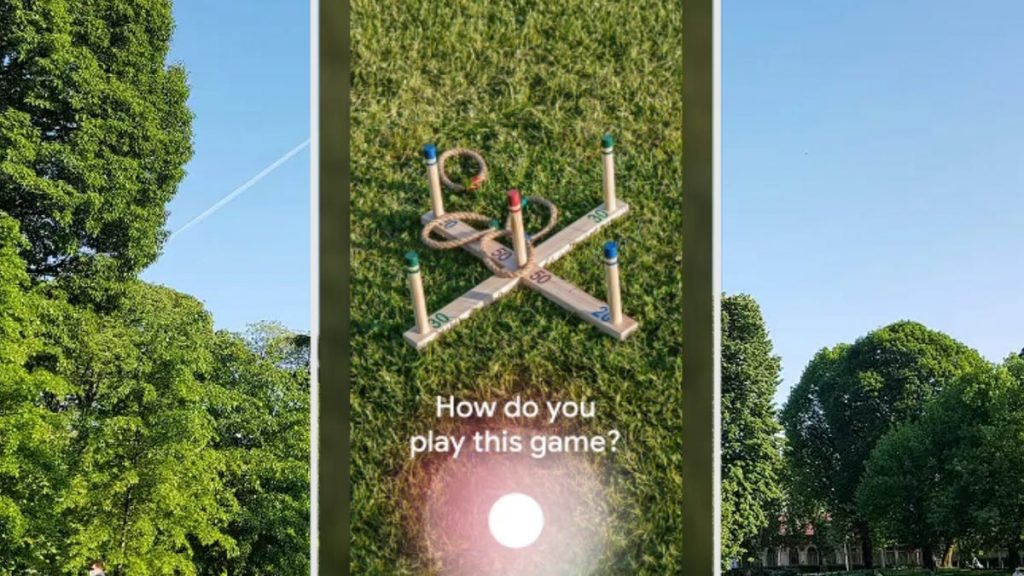
Ever find yourself staring at a painting in a museum, totally intrigued but with no idea what you’re looking at? That was me just a few days ago when I was standing in front of a surreal piece at the Dalí Museum in St. Petersburg. Even though I wrote an 80-page thesis on surrealism as an undergraduate, I’m still not an expert art historian. But I wished I had access to one when I was looking at the strange and disturbing Daddy Longlegs of the Evening Hope painting.
Google Lens was helpful when I pointed my phone’s camera at the painting and asked it to tell me more about the work of art. I got an AI Overview that broke down key details, like who created it (I knew this), when it was painted and what materials were used (given to me by the plaque next to the painting). But even more interesting, I learned why the painting matters and a breakdown of what the imagery is likely representative of. Lens then offered links to websites to take a dive deeper if I wanted to.
This feature helps you make sense of what you’re seeing in real time. It also allows you to speak your question aloud while snapping a photo. It’s kind of like turning to a friend and saying, «Wait, what is this?» and getting an immediate answer.
Deep dive with the About this image feature
When I was recently visiting my older sister in Tulsa, Oklahoma, I snapped a photo of some bizarre clouds that looked like a thick, wavy blanket covering the entire sky as far as the eye could see. I’ve never seen anything like it before.
I used the About this image feature in Google Lens to figure out what I was actually looking at. It showed me how the photo (and ones like it) were being used across the web — from weather blogs to social media platforms to fact-checking sites — and helped me learn that these are undulatus clouds, appearing as «cloud streets» because they look like parallel bands or rows.
Whether you encounter an odd image online or in real life, this tool provides quick context and helps you understand what different sources are saying.
Summarize and translate text from a photo
When you’re traveling, you never know what kind of text you’ll run into that’ll need translating — menus, handwritten signs, museum placards, notes from an Airbnb host. With Google Lens, you can snap a picture of any text and instantly get a summary, ask questions about it or copy it to your clipboard. The feature can also annotate the image, such as highlighting dishes on a menu that meet your dietary preferences, so you’re not stuck translating.
I can imagine using it to quickly find vegetarian dishes on a local menu or to make sense of a scribbled transit schedule at a rural train stop. Berrada said she has personally used this feature to translate recipe cards in French that her mother gave to her, so she can share the English translation with her husband.
Whether you’re navigating a new city or just trying to decode a note left by your Airbnb host, it’s a handy tool for making the unfamiliar feel a bit more manageable.
Get souvenir details instantly when traveling
Imagine you’re wandering through a street market in Tokyo or browsing a boutique in Lisbon and spot something you’d love to bring home — a unique canvas tote bag (my personal souvenir of choice), a pair of sunglasses or a handmade clothing item. With Google Lens, you can snap a quick photo and instantly pull up product details, including prices at other retailers, current deals, shopper reviews and shipping information if you’re wanting to ship it back home. It’s an easy way to figure out if you’re getting a good price or if it’s worth waiting to buy later.
Even in a store, Lens can show you if similar items are in stock elsewhere nearby or online, whether the price is competitive and what other travelers or shoppers have said about it. It takes the guesswork out of impulse buys, especially when you’re on the go.
«This is my absolute favorite use case with Lens. I love it for shopping,» Berrada said.
She explained that the tool taps into a massive shopping graph with more than 50 billion listings that are constantly updated and drawn from online sources and local stores. It then shows the exact product you’re looking at, along with the best available prices, so you can compare options before making a purchase. If you’re not set on buying that exact item, Lens also provides visually similar alternatives and products with comparable features, such as lightweight materials or enhanced durability.
She also shared a personal example from a trip to Paris, where she used Lens to scan apparel she saw in a store. The feature helped her decide whether to buy the item locally or wait until returning home, factoring in currency differences and availability of local brands.